Databricks Free Edition with dbt Core
I traded e-mails with a colleague working through issues configuring dbt for use with their new Databricks Free Edition workspace. For others working through similar issues, this post is a summation of the set up instructions I shared and links for further reading.
Set Up Instructions
Databricks announced a new free edition of the their data platform in June 2025 intended for learners and hobbyists. Data engineers and analysts can use dbt with Databricks Free Edition.
Configuring Databricks
- Login to your Databricks Free Edition account by navigating to https://login.databricks.com/.
- Sign-up for an account or sign-in if you have an existing account.
- Create a new personal access token (PAT).
- Select Settings from the user menu at the top right of the page.
- Click the Developer link under the User section of the Settings menu.
- Click Manage to the right of the Access Tokens header.
- Click the Generate new token button.
- Save the token in a secure place for later use.
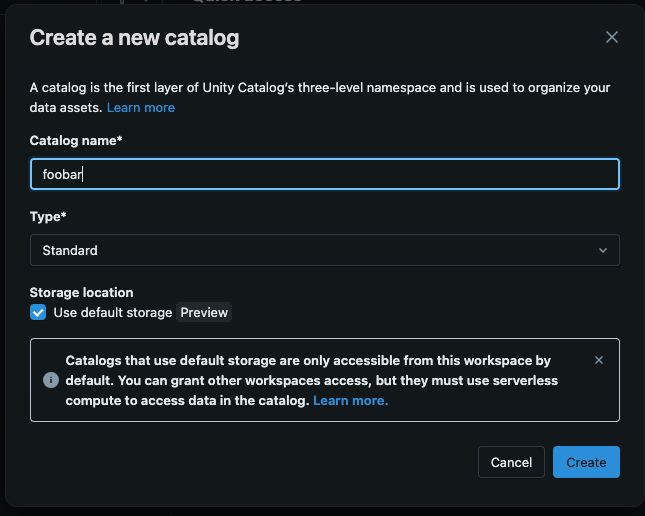
- Select Catalog from the menu bar on the left side of the page.
- Click the + sign to the top right of the Catalog pane.
- Enter the name of the catalog in the Catalog name* field.
- Ensure the Type* drop has “Standard” selected.
- Ensure the Use default storage is checked.
- Click the Create button.
- Select SQL Warehouse from the menu bar on the left side of the page.
- Click the “Serverless Starter Warehouse” link on the Compute page.
- Click the Start button at the top right of the page.
- Save the URL for later use.
Configuring dbt
The instructions in this post were run on machines with the following software versions:
- MacOS 15.5
- Bash 3.2.57
- Python 3.13.5
- dbt Core 1.10.5
- dbt Databricks plugin 1.10.4
I used the following steps to configure dbt Core.
- Open a new terminal.
- Confirm Python 3.7 or greater is available on your system. I am using Python 3.13.5.
- Create a new directory.
- Navigate to the directory.
- Create a new virtual environment:
python -m venv env - Activate the virtual environment:
source ./env/bin/activate - Install the dbt-core and dbt-databricks packages:
python -m pip install dbt-core dbt-databricks - Initialize your new Databricks project
- Run
dbt initfrom the commandline - Provide the information when prompted.
- When asked “Which database would you like to use?”, choose “databricks”.
- When asked “host (yourorg.databricks.com)”, choose the subdomain and domain portion of the SQL warehouse URL e.g.,
dbc-b82471fc-21d3.cloud.databricks.com - When asked “http_path (HTTP Path)”, provided the path portion of the SQL warehouse URL e.g.,
/sql/warehouses/723b706a90da12d4 - When asked “Desired access token option (enter a number)”, select “use access token”.
- When asked “token (dapiXXXXXXXXXXXXXXXXXXXXXXXXXXXXXXXX)”, paste the PAT you generated.
- When asked “Desired unity catalog option (enter a number)”, select “use Unity Catalog”.
- When asked “catalog (initial catalog)”, enter the name of your catalog.
- When asked “schema (default schema that dbt will build objects in)”, enter “default”.
- When asked “threads (1 or more) [1]”, choose the right number of threads for your application. I choose 1 thread for my project.
- Run
- Navigate into the project folder.
- Run the
debugto verify you environment has bee set up successfully:dbt debug
Additional Resources
- (Databricks) Connect to dbt Core
- (Databricks) Databricks Free Edition Limitations
- (databricks/dbt-databricks) dbt Databricks Connector Source Repository
- (dbt Labs) Databricks Setup
- (dbt Labs) Set up your dbt project with Databricks